
Download acqlite – Free P2P client, Gnutella network, iTunes integration
Overview
acqlite is a lightweight, free acquisition‑style peer‑to‑peer (P2P) client that revives the spirit of classic file‑sharing programs such as LimeWire, Acquisition, and Cabos. Built on the mature Gnutella network, acqlite offers a clean, user‑friendly interface that balances simplicity with powerful search capabilities. One of its standout qualities is the seamless iTunes and iPod integration, allowing users to share music and videos directly from their Apple media library without leaving the application.
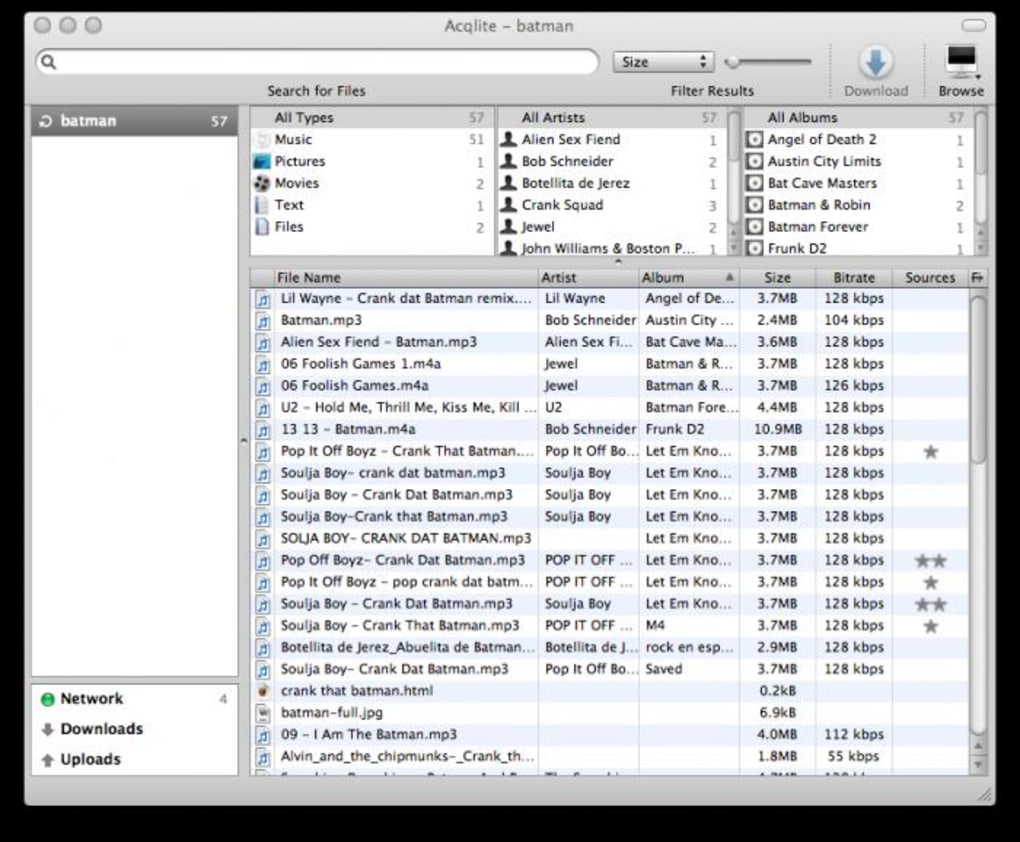
Upon launch, acqlite automatically connects to the Gnutella network, eliminating the need for manual configuration—a feature that both newcomers and seasoned P2P enthusiasts appreciate. The client also categorizes files into intuitive sections—Movies, Pictures, Documents, and Music—making it easy to locate the type of content you’re after. For those concerned about unwanted material, acqlite includes robust filter options that can block adult content, spam, or files lacking specific keywords, sharpening the relevance of search results.
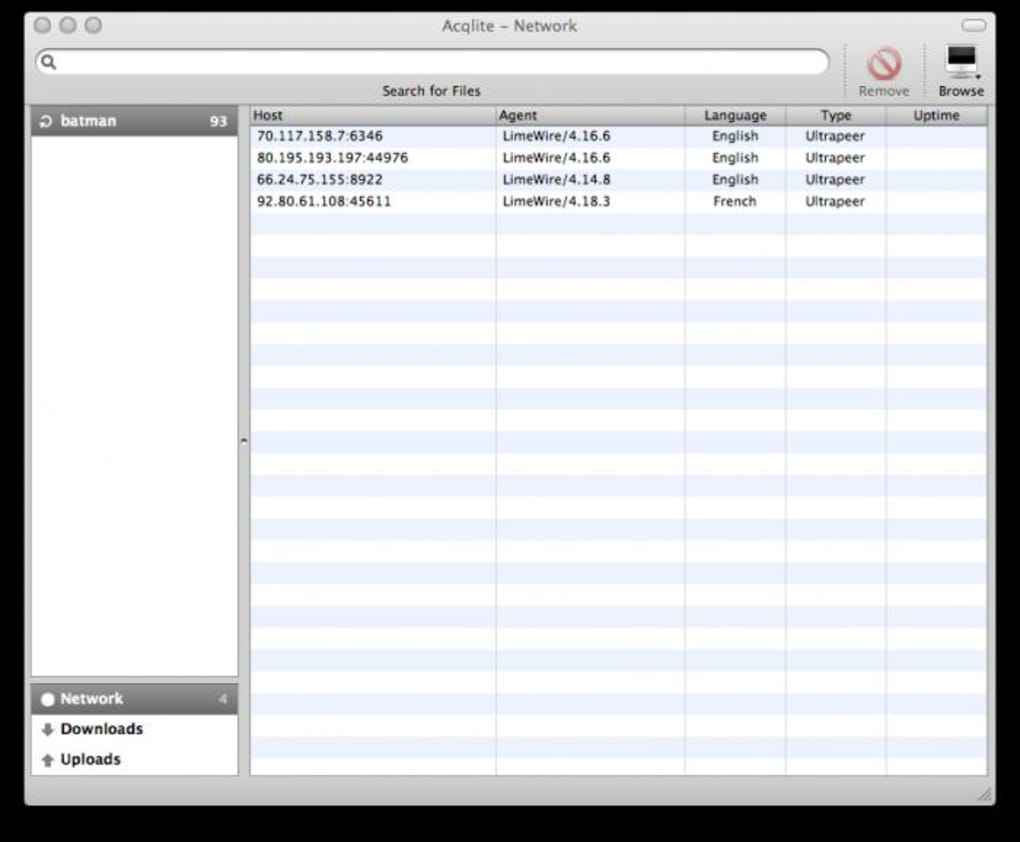
Though the download and upload panels sit quietly at the bottom left of the window, they are just a click away, providing real‑time status updates without cluttering the main view. In short, acqlite captures the nostalgia of early‑2000s file‑sharing while delivering modern conveniences such as automatic network connection, smart filtering, and tight Apple ecosystem integration.
Key Features and Benefits
- Automatic connection to the Gnutella network on startup.
- Responsive, multi‑threaded search engine with keyword highlighting.
- File categorization by type (Movies, Pictures, Music, Documents).
- Built‑in filters for adult content, spam, and non‑keyword matches.
- Full iTunes/iPod integration for effortless media sharing.
- Lightweight design – low CPU and memory footprint.
- Cross‑platform compatibility with Windows, macOS, and Linux.
- Free to download and use with regular security updates.
Pros
- Easy to use: The interface is intuitive, requiring minimal learning curve.
- Smart filtering: Users can tailor search results to avoid unwanted content.
- iTunes integration: Directly share music and videos without exporting files.
- Lightweight performance: Runs smoothly on older hardware.
- Free and open: No hidden fees or subscription models.
Cons
- Limited modern protocols: Focuses solely on Gnutella, missing BitTorrent support.
- Minimal UI customization: Themes and skinning options are scarce.
- Hidden transfer panel: Downloads/uploads are tucked away at the bottom left.
- Outdated documentation: Official guides are sparse, relying on community forums.
- No built‑in VPN: Users must rely on external tools for privacy.
Installation and Usage Instructions
Getting started with acqlite is straightforward. Begin by visiting the official download page and selecting the installer that matches your operating system. For Windows users, the .exe package provides a classic wizard; macOS users download a .dmg file, while Linux enthusiasts can obtain a .tar.gz archive or use the provided repository. Once the installer is launched, follow the on‑screen prompts—accept the license agreement, choose an installation directory, and let the setup copy the necessary files.
After installation, launch acqlite. The client automatically connects to the Gnutella network, displaying a brief status message in the lower‑left corner. To start a search, type your query into the search bar at the top of the window and press Enter.
The results will appear categorized by file type; you can refine them further using the filter settings located under the Preferences menu. To enable iTunes integration, navigate to Settings > Media Integration and authorize acqlite to access your iTunes library. Once authorized, any music or video files you share will appear in the Shared Media tab, ready for other users to download.
Downloading a file is as simple as double‑clicking the desired entry. A progress bar will pop up in the hidden download panel; you can reveal this panel by clicking the small arrow icon at the bottom left of the main window. Uploads work the same way—when another peer requests a file you have shared, acqlite will automatically start the transfer, respecting the bandwidth limits you set in the Network preferences. To stop a transfer, right‑click the active job and choose Cancel. Finally, remember to periodically check for software updates via Help > Check for Updates to keep your client secure and performant.
Compatibility and System Requirements
acqlite has been engineered to run on the three major desktop platforms, ensuring a broad user base can benefit from its features. The application is fully compatible with:
- Windows 7, 8, 10, and 11 – 32‑bit and 64‑bit builds are provided.
- macOS 10.12 (Sierra) and later – Supports both Intel and Apple Silicon Macs (via Rosetta 2 for the latter).
- Linux distributions – Ubuntu 18.04+, Fedora 30+, and Debian 10+ are officially supported; other distros can use the generic tarball.
Minimum hardware requirements are modest: a 1 GHz processor, 512 MB of RAM, and 50 MB of free disk space for the application itself. Because acqlite is lightweight, it runs comfortably on older machines, making it a good choice for users who keep legacy hardware. Network-wise, a stable broadband connection (minimum 512 kbps download/upload) is recommended to achieve reasonable transfer speeds, though the client will function on slower connections as well.
For users who rely heavily on Apple’s ecosystem, the iTunes integration works best on macOS and Windows versions of iTunes 12.9 or later. Linux users can still share files, but the iTunes feature will be unavailable unless they run a compatible Windows environment via Wine. Security updates are released quarterly, addressing any discovered vulnerabilities and ensuring compatibility with the latest operating system patches.
Frequently Asked Questions
Is acqlite completely free?
Yes, acqlite is offered as a free download with no hidden subscription fees. All core features, including iTunes integration and content filters, are available at no cost.
Can I use acqlite on a Mac with an Apple Silicon chip?
Absolutely. The macOS build runs natively on Intel Macs and, thanks to Rosetta 2, works smoothly on Apple Silicon devices.
How does the content‑filtering system work?
In the Preferences menu you can enable filters for adult content, spam, and files that don’t contain specific keywords. The client then automatically excludes any results that match the blocked categories, delivering cleaner search outcomes.
Is there a way to limit my upload bandwidth?
Yes. Under Settings > Network, you can set maximum upload and download speeds. This helps you keep acqlite from consuming all of your internet bandwidth.
Will acqlite work behind a firewall or proxy?
acqlite supports standard proxy configurations. You can enter your proxy details in the Network settings, and the client will route its Gnutella traffic accordingly.
Conclusion – Should You Download acqlite?
For anyone nostalgic for the classic era of P2P file sharing, acqlite delivers a familiar yet refreshed experience. Its automatic Gnutella connection, precise search engine, and especially its tight iTunes integration make it a compelling free alternative to older clients that have long since disappeared. While the lack of modern protocols like BitTorrent and the hidden transfer panel might be minor inconveniences, the lightweight footprint, robust content filters, and cross‑platform support outweigh these drawbacks for most casual users. If you’re looking for a secure, free tool to browse, download, and share media—particularly if you already own an iTunes library—acqlite is definitely worth a try. Download today, run the simple installer, and enjoy a smooth, ad‑free file‑sharing experience that respects your preferences and privacy.
acqlite offers a nostalgic, well‑designed P2P client with solid iTunes integration, making it a strong free choice for media sharing enthusiasts.







